































ApiTree Brand Guidelines
Version 1.2 · 28 October 2026 · Owner: Vít Rozsíval · Czech: docs/brand.cs.md
Binding rules for everything that carries the ApiTree brand: documents, presentations, social media, email. They apply
to people and AI assistants alike. The values below are generated from tokens/. If they ever differ, the tokens win.
For AI assistants: follow these rules literally. Build documents from the templates (
get_templateon the brand server, ortemplates/html/in the repository), render them withrender_pdforpnpm run render, and fix everything the brand check reports. Embed the logo as a file. Never draw the logo, retype it in a font or modify it. When in doubt, choose the simpler layout with fewer elements.
1. The Brand at a Glance
- Character: a technology company, matter-of-fact and precise. The visual language comes from the developer's
world: monospace headings, the
_cursor, code, the grid. - Dark for screen, light for print. Presentations, the website and social media are dark (
data-theme="dark"). A4 documents, proposals and letters are light (data-theme="light"). - Green is an accent, not a surface. Most of the area is neutral; green points things out.
- Fewer elements. One motif per page, one accent per block. Empty space is fine.
2. Logo
Layouts
| Layout | Files | When to use |
|---|---|---|
| Horizontal (primary) | assets/logo/horizontal/ |
Always, unless there is a reason for another layout. Headers, footers, slides, web. |
| Stacked | assets/logo/stacked/ |
Narrow or square spaces: cover pages, merchandise, roll-ups. New in v1, derived from the horizontal logo. |
| Symbol | assets/logo/symbol/ |
Small spaces where the wordmark is unreadable: favicon, avatar, app icon. |
| Color | Background |
|---|---|
color (green symbol, black wordmark) |
White, gray 8–10, primary.white |
color-inverse (green symbol, white wordmark) |
Gray 1 #25282C, black #16171A, primary.heavy-dark, primary.black |
mono-black |
Single-color print, rubber stamps, engraving |
mono-white |
Photos and green or colored surfaces where the green symbol would vanish |
Every file comes as SVG (web, HTML, Figma), PNG in several widths (Office, Google, email) and PDF (print). Always use the largest PNG available and scale it down, never up.
Logo Colors
- Symbol:
#5DB77A(color.logo.symbol). This color belongs only to the logo, symbol and stamp and is used nowhere else. - Wordmark:
#000000on light,#FFFFFFon dark backgrounds.
Clear Space and Size
- Clear space around the logo is half the logo height on every side (20 px for a 40 px tall horizontal logo). No text, other logo, page edge or motif may enter it.
- Minimum height:
| Layout | Screen | |
|---|---|---|
| Horizontal | 24 px (32 px on light backgrounds) | 6 mm |
| Stacked | 48 px | 12 mm |
| Symbol | 16 px | 4 mm |
| Stamp | 120 px | 30 mm |
The green symbol has lower contrast on light backgrounds, so the minimum is higher there.
Placement
- A4 documents: top left in the header, or bottom left in the footer. Once per page.
- Slides: top left on the title slide, a small logo on the left of the footer on all other slides.
- The logo stands alone, never inside a sentence or a heading.
Never
- ✘ Recolor the logo or add gradients, shadows, outlines or transparency.
- ✘ Distort, rotate or crop it, or change the ratio of symbol to wordmark.
- ✘ Retype “APITREE” in a font or redraw the logo. Always embed the file.
- ✘ Use the old logo with the letter-spaced “A P I T R E E” wordmark, or templates set in Keep Calm.
- ✘ Replace the full logo with the symbol where the full logo fits.
- ✘ Place the logo on busy backgrounds (photos, patterns) without enough contrast. Use
mono-whiteon a dark photo, or put a solid surface under the logo.
3. Stamp “The art of technology”
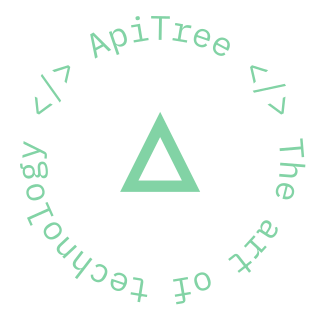
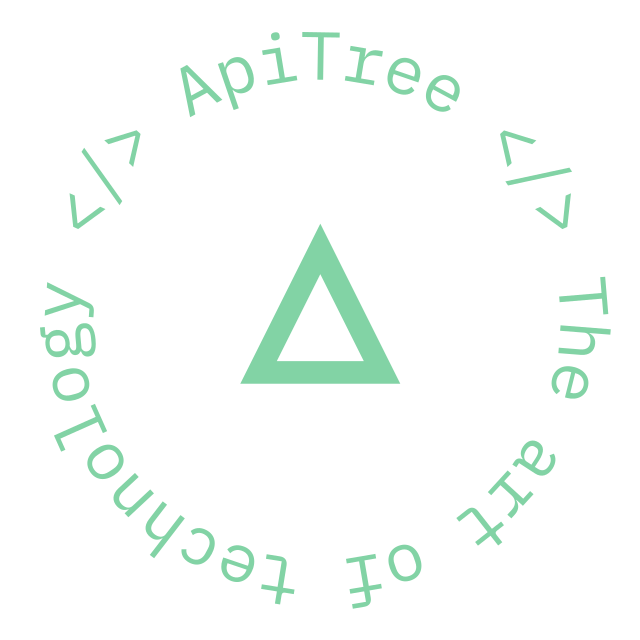
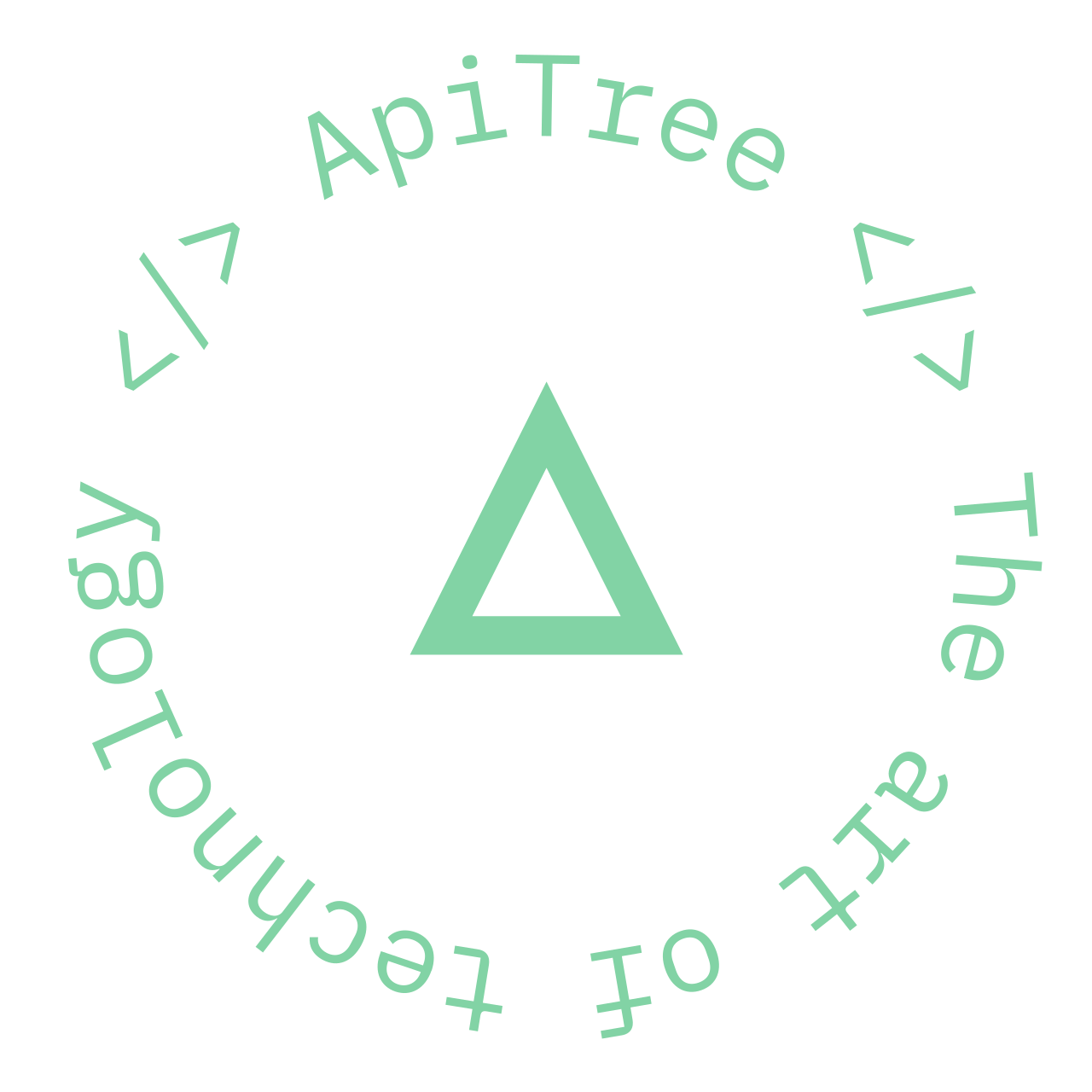
A round seal with the text </> ApiTree </> The art of technology around the symbol. Files are in
assets/logo/stamp/.
- It is a secondary element and never replaces the logo. A page or slide with the stamp must also carry the logo.
- At most one per page or slide, in a corner or along an edge, farther from the logo than its clear space.
color(#82D3A5) on dark backgrounds only. Usemono-blackon light ones.- It may rotate (the website animates it); otherwise the logo rules apply.
4. Motifs
The Large Triangle
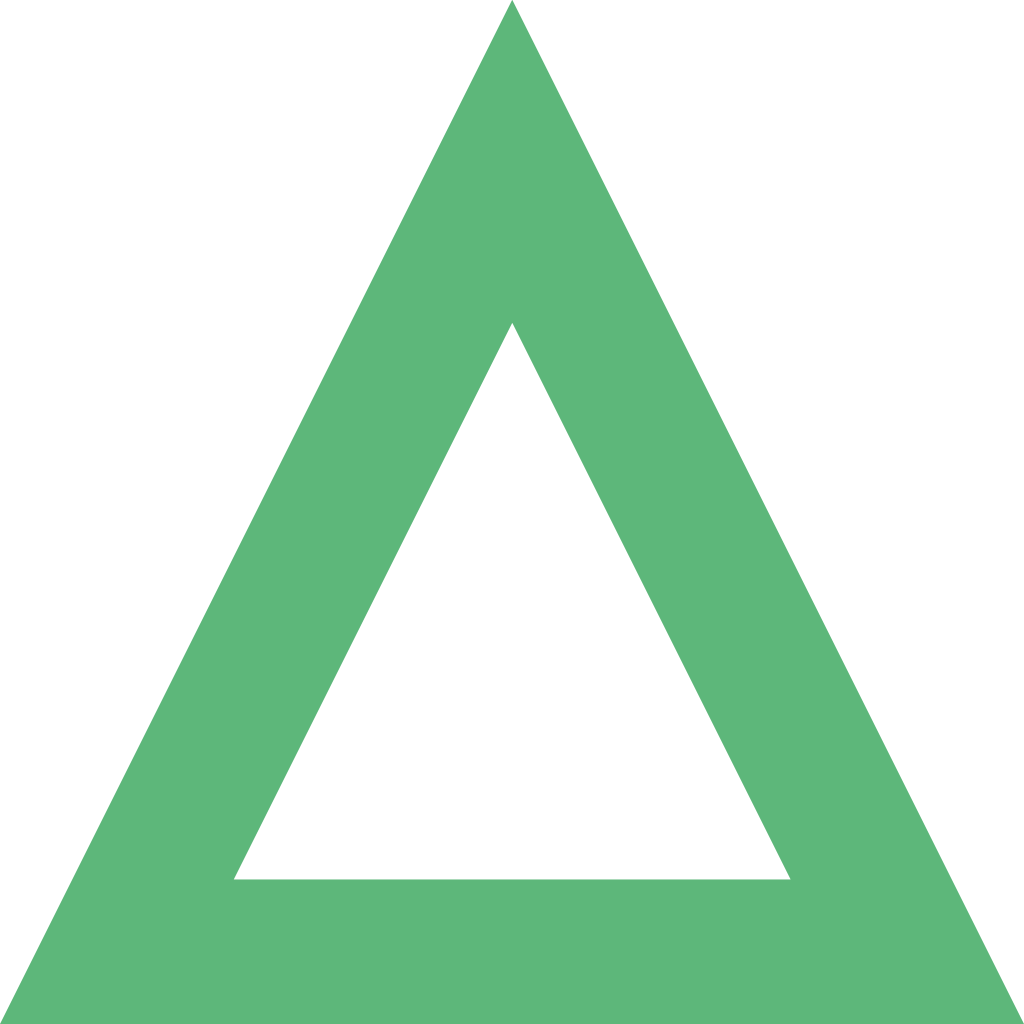
An outlined triangle in the shape of the symbol, used as background decoration (title and section slides, covers).
- At most one per page or slide, always pointing up and cropped by the edge (it runs off the page).
- Dark backgrounds:
primary.mainat 10–20 % opacity, or solidprimary.heavy-darkonprimary.black. - Light backgrounds:
primary.mainat 8–12 % opacity. - Never under text where it hurts legibility, and never inside the logo's clear space.
- It is not the logo: never use it in place of the logo or in
#5DB77A.
The _ Cursor
- A green underscore after the main heading (document title, title slide, slide heading) in
theme.accent.main. - Once per page or slide, never in body text, buttons or tables.
Code and Grid
- Code blocks (
{ mailto: info@apitree.cz }) are set in JetBrains Mono ontheme.bg.surface, line numbers intheme.text.muted. - Dashed guide lines (
theme.border.default) may frame content on social media and covers, not in running text.
5. Colors
The full list is in tokens/base.json; ready-made CSS variables are in build/css/tokens.css.
Core Palette
| Color | Hex | Token | Use |
|---|---|---|---|
| Green | #46B178 |
color.primary.main |
Accents, bullets, rules, buttons |
| Dark green | #1D7E50 |
color.primary.dark |
Green text on light backgrounds |
| Light green | #82D3A5 |
color.primary.light |
Green text on dark backgrounds |
| Deep green | #155036 |
color.primary.heavy-dark |
Highlighted blocks, section slides |
| Gray 1 | #25282C |
color.gray.1 |
Dark background, text on light |
| Black | #16171A |
color.black |
Cards and code on dark backgrounds |
| White | #FFFFFF |
color.white |
Light background |
Green scale: #EFFAF3 · #D8F3E0 · #B3E7C6 · #82D3A5 · #46B178 · #1D7E50 · #155036 · #092519.
Gray scale: #25282C · #383D42 · #40474C · #4A525A · #5B666E · #717E86 · #B6BEC3 · #D8DCDF · #EEEFF0
· #F4F5F6.
Themes (Semantic Colors)
Templates use the semantic variables --at-theme-*, not the palette directly. The same name resolves to the right
value in the dark and the light theme.
| Role | Dark (screen) | Light (print) |
|---|---|---|
bg.page |
#25282C |
#FFFFFF |
bg.surface cards, code |
#16171A |
#F4F5F6 |
bg.surface-raised |
#383D42 |
#FFFFFF + border |
bg.accent-subtle |
green 10 % | #EFFAF3 |
bg.accent-strong |
#155036 |
#155036 |
text.primary |
#EFFAF3 |
#25282C |
text.secondary |
#D8F3E0 |
#4A525A |
text.muted |
#B6BEC3 |
#5B666E |
text.accent |
#82D3A5 |
#1D7E50 |
border.default |
#383D42 |
#D8DCDF |
accent.main decoration |
#46B178 |
#46B178 |
accent.strong icons, charts |
#46B178 |
#1D7E50 |
Rules
- Area ratio: roughly 70 % neutral background, 20 % gray surfaces and text, 10 % green.
- Green text on light backgrounds is always
#1D7E50.#46B178on white has a contrast of only 2.7 : 1 and is not allowed as text. accent.mainis decoration only (bullets, rules,_, the motif). Graphics that carry meaning (icons, arrows, chart lines) useaccent.strong.- Contrast: text at least 4.5 : 1, meaningful graphics at least 3 : 1.
pnpm run check:contrastchecks every pairing in both themes. - State colors (
state.warningorange,state.errorred) are for states and warnings only, never decoration. - No other colors. No blue, purple, yellow, and no gradients. The only exception is the chart palette (§ 8), and only inside charts.
6. Typography
| Typeface | Role | Weights |
|---|---|---|
| JetBrains Mono | Headings, numbers and stats, labels and eyebrows, code | Regular 400, Medium 500, Bold 700 |
| Poppins | All other text | Regular 400, Medium 500, Bold 700 (+ italics) |
The fonts live in assets/fonts/ (TTF to install on your computer, WOFF2 for web and PDF) under the SIL Open Font License
1.1. Google Docs and Slides offer both typefaces without installation.
Rules
- No other typeface. Not Inter, Arial, Helvetica, Calibri, DejaVu or Keep Calm. If a font fails to load, the document must not ship: always check the embedded fonts in the PDF.
- Headings in sentence case (“How we built it”), not Title Case.
- Labels and eyebrows: JetBrains Mono Medium, uppercase, 0.08 em letter spacing.
- Numbers in stats are always JetBrains Mono Bold.
- No Light, SemiBold or Black weights.
- Symbols Poppins lacks (arrows
→,✓,●,▲) fall back to JetBrains Mono automatically. Neither font has✔ ✘ ★ ☆: use✓ ✗instead. - Left-aligned. Never justified, and centered only on title slides and in the stamp.
Scales
Values are in tokens/typography.json; CSS variables follow --at-type-{screen|slide|print}-{style}-{family|size|line-height|weight}.
Screen (web, px): h1 48 · h2 32 · h3 24 · h4 20 · h5 16 (JetBrains Mono Bold) · xl 18 · l 16 · m 14 · s 12 (Poppins).
Slides 16:9 (1920 × 1080 px canvas):
| Style | Typeface | Size / line height |
|---|---|---|
| display (title slide) | Mono Bold | 88 / 1.15 |
| h1 (slide heading) | Mono Bold | 56 / 1.2 |
| h2 | Mono Bold | 40 / 1.25 |
| h3 | Mono Bold | 28 / 1.3 |
| stat (big number) | Mono Bold | 72 / 1.1 |
| body-l | Poppins | 28 / 1.5 |
| body | Poppins | 24 / 1.5 |
| small | Poppins | 18 / 1.45 |
| label | Mono Medium, uppercase | 16 / 1.4 |
Print A4 (pt):
| Style | Typeface | Size / line height |
|---|---|---|
| title (document title) | Mono Bold | 28 / 1.2 |
| h1 | Mono Bold | 18 / 1.25 |
| h2 | Mono Bold | 13 / 1.3 |
| h3 | Poppins Bold | 10.5 / 1.4 |
| stat | Mono Bold | 24 / 1.1 |
| body | Poppins | 10 / 1.5 |
| small | Poppins | 8.5 / 1.45 |
| caption | Poppins | 7.5 / 1.4 |
| label | Mono Medium, uppercase | 7.5 / 1.4 |
Handouts and cheat sheets that must fit a printed sheet use the compact print variant (at-compact): body
9 pt, small 8 pt, caption 7 pt, title 24 pt, h2 12 pt, page margins 13–16 mm. Nothing smaller than that.
7. Layout
- 8 px grid on screen (
--at-space-*). Corner radius 8–16 px on cards, 4 px on tags (--at-radius-*). - A4: 18 mm margins (13–16 mm compact). The first page opens with a dark hero block or a page header with the logo; every page has a footer with the document title and the page number.
- Letters: logo top left, company details top right, recipient in the DL window position, legal details in the footer.
- Slides: a 96 px safe area inside the 1920 × 1080 canvas, a footer with a small logo on the left, the presentation title and the slide number. Layouts: title, content, stats and cards, section divider, timeline, chart, closing.
- Use the templates in
templates/html/and their components (card, stat, callout, table, tag, steps, timeline, code, bars). Their catalog is indocs/templates.md. Don't build layouts from scratch. - Company details (name, address, IČO, DIČ, register entry) come from
config/company.json. Never retype them.
8. Charts
Charts get their own categorical palette, validated for color vision deficiency in both themes. The colors appear only inside charts, never in text, surfaces or decoration.
| Slot | Dark (screen) | Light (print) |
|---|---|---|
| series-1 | #43AC74 |
#1D7E50 |
| series-2 | #3987E5 |
#2A78D6 |
| series-3 | #C98500 |
#C98500 |
| series-4 | #9085E9 |
#6250D6 |
| series-5 | #D55181 |
#D55181 |
| other | #717E86 |
#717E86 |
- Fixed order, never cycled. One series is always
series-1(green). More than five series fold intoother, or the chart splits into small multiples. - Label values directly on the chart; a legend is required from two series on. Values and labels use text colors, never the series color.
- Magnitude (one measure, light to dark) uses the green scale
primary.white→primary.black. - One axis only. Thin bars with rounded ends, thin lines, a quiet grid (
chart.grid,chart.axis). - Status colors stay reserved: a red bar means an error state, not “series 5”.
9. Icons
- Line icons on a 24 × 24 px grid with a 1.5–2 px stroke, exported from the website's set into
assets/icons/(pnpm run import:icons). - Color
theme.accent.strongor the color of the surrounding text. Never multicolor icons, and never filled icons next to line icons.
10. Files and Output
- Clients receive PDF. Editable formats only on request.
- Every PDF passes the brand check before it is sent: only Poppins and JetBrains Mono, only palette colors, the right
page size. The brand server's
render_pdf(orpnpm run render page.html out.pdf --format a4|slide) renders and checks in one step;check_pdf(orpnpm run check:pdf file.pdf) checks an existing file. - Name files
ApiTree-<Client>-<Topic>.pdf, without diacritics or spaces.